Get started on your favourite device. Choose a guide below for illustrated installation steps and player links. Need a hand? Our team can help you check compatibility.
Before you begin: have your own subscription details ready. App licences and service subscriptions are separate. Download only from the publisher or your device’s store. Screenshots are examples from older versions and may differ from today’s interface.
These illustrated steps apply to compatible Android-based Fire TV devices. Menus vary by model and software version. If your device does not support this installation route, use an available app from its store or ask us to check your model.
Read first: the screenshots show an older interface. Follow the written download links below, not old addresses shown in an image. Keep your account details private and use only content you are entitled to access.
App installation help: Amazon Fire TV documentation.
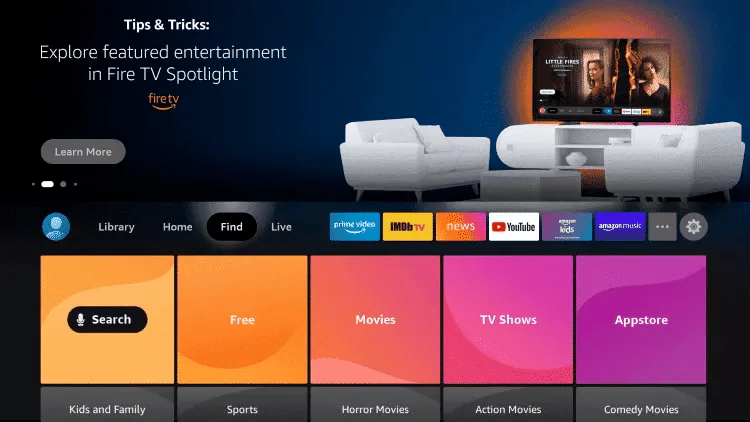
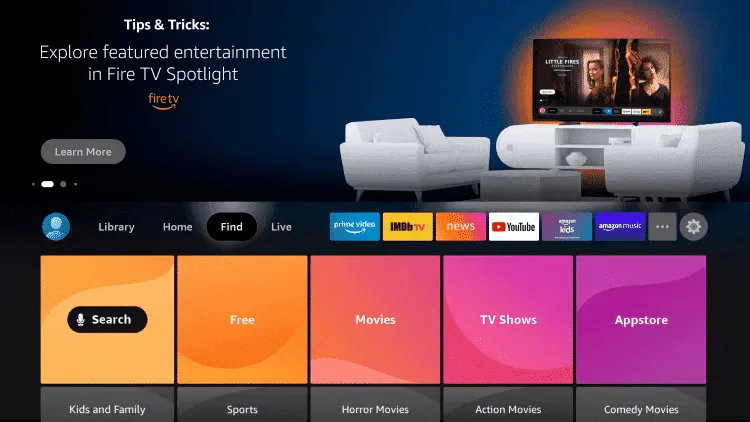
1. From the Home screen, open Find.
2. Choose Search.
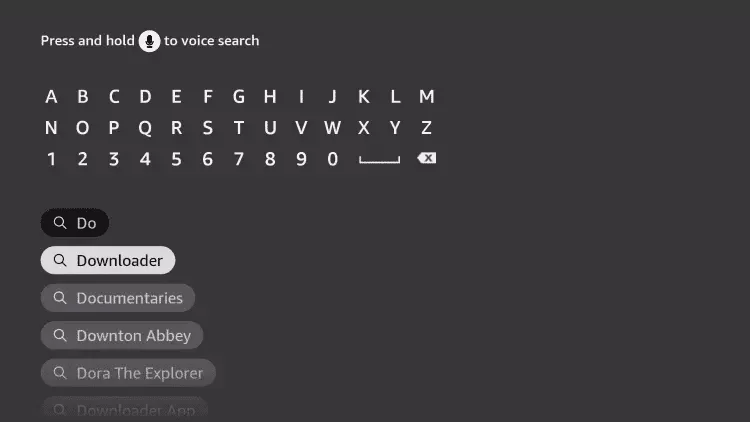
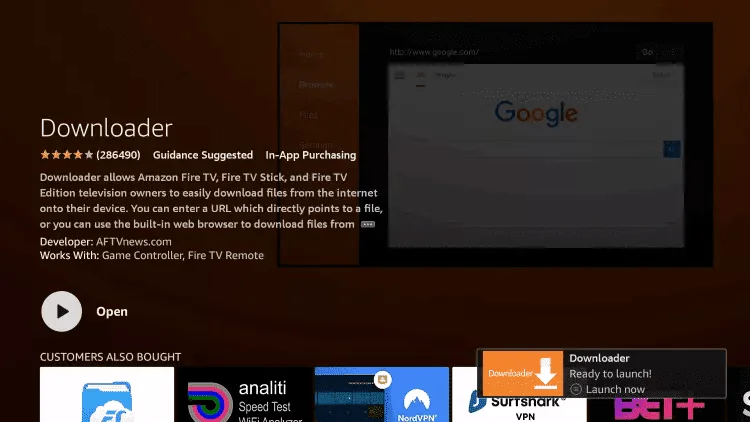
3. Type Downloader and select the matching search result.
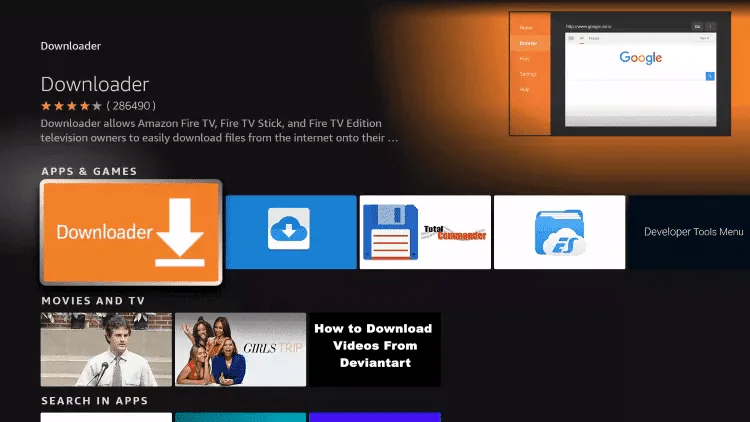
4. Select the Downloader app and check the publisher before proceeding.
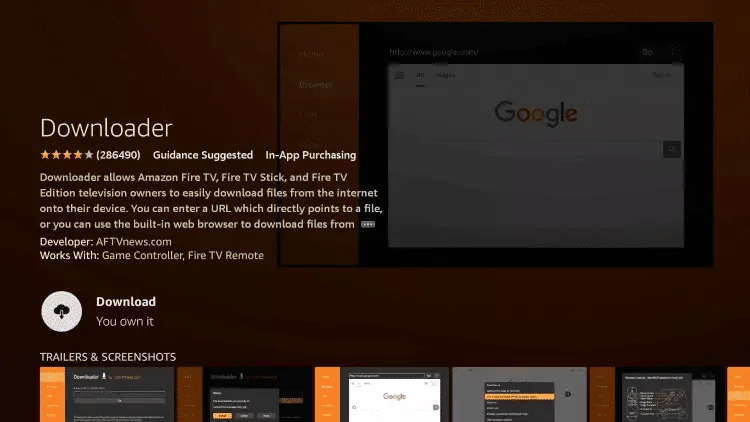
5. Choose Get or Download to install it.
6. When installation finishes, choose Open.
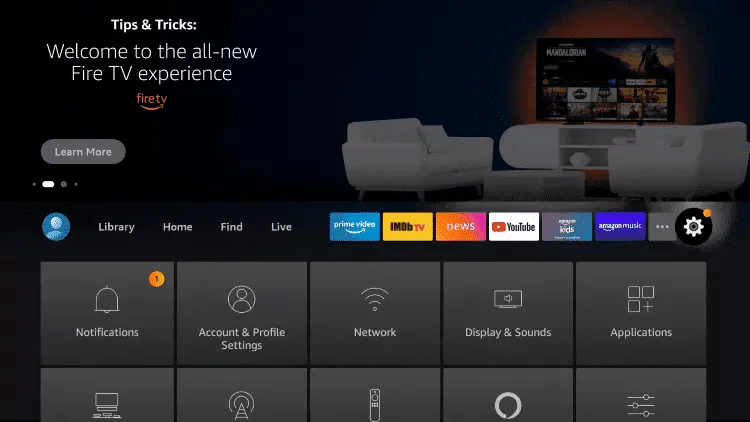
7. Return to Home and open Settings.
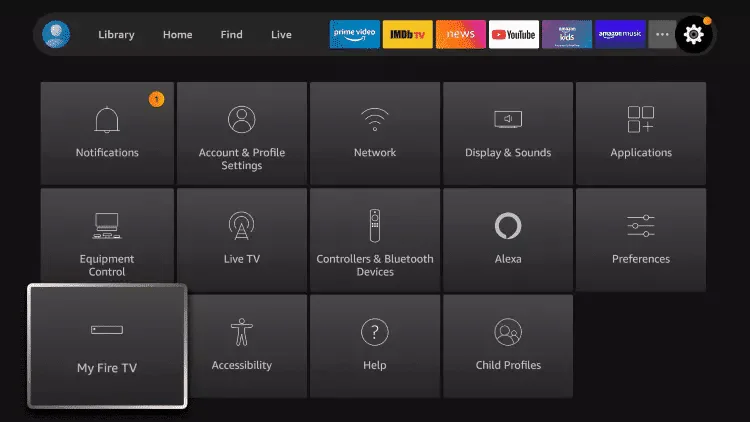
8. Open My Fire TV (the label can differ by model).
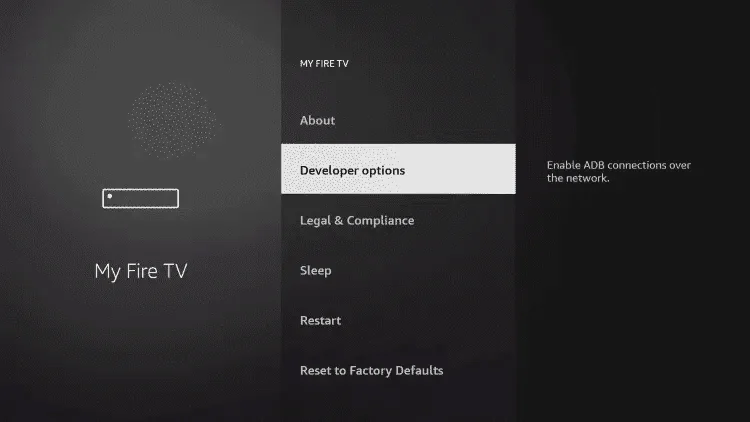
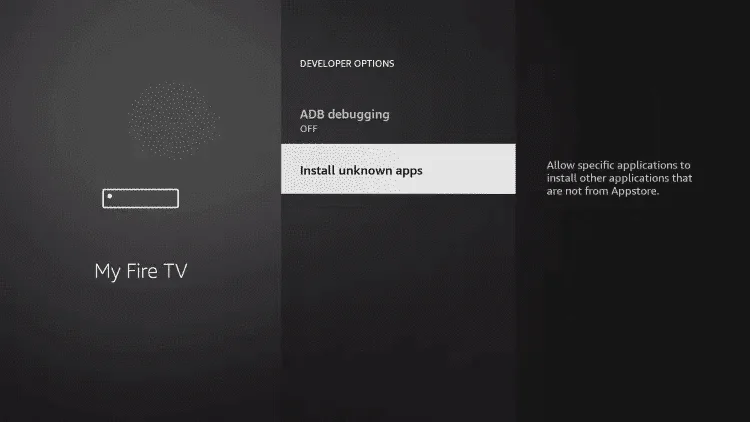
9. Look for Developer options. If this is not available, check your model’s official instructions or contact support.
10. On supported models, open Install unknown apps. This permission allows apps from outside the store, so only use a publisher you trust.
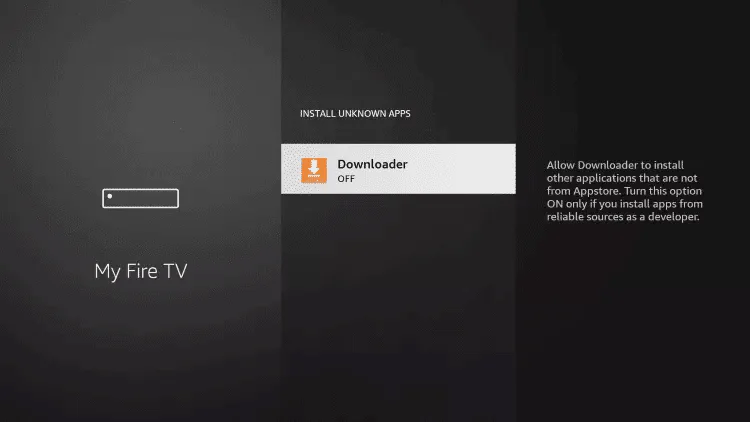
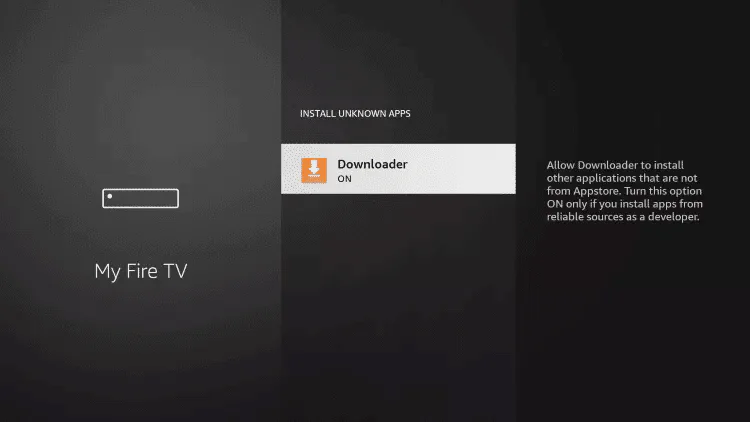
11. Select Downloader in the per-app permission list.
12. If you choose to continue, enable installation permission for Downloader only. Turn it off again after installation; ADB debugging is not needed for this guide.
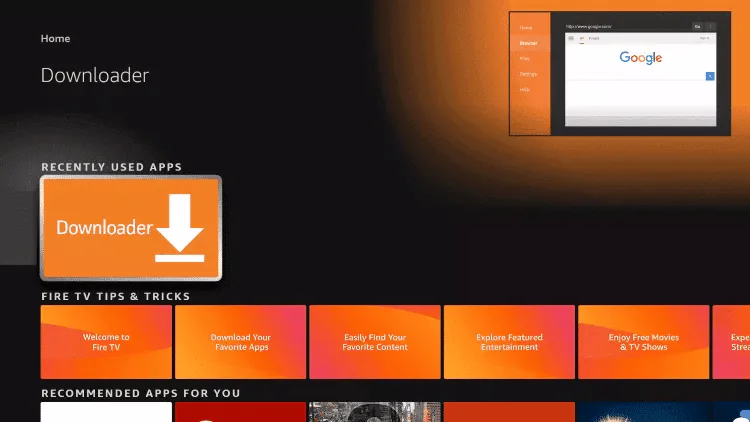
13. Launch Downloader from your apps.
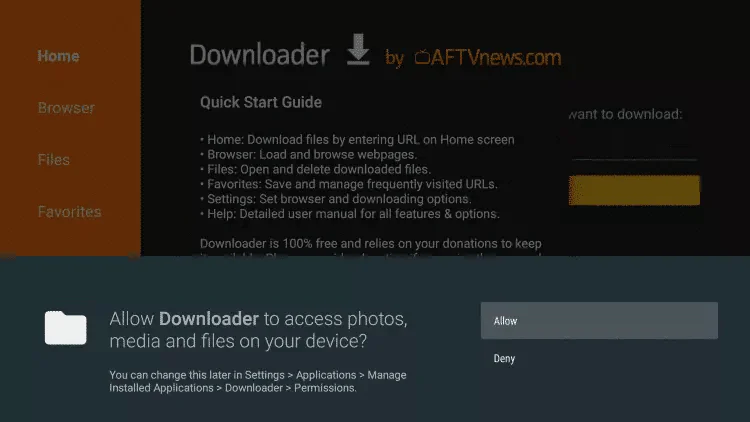
14. Read any permission request and grant only what is needed for the download.
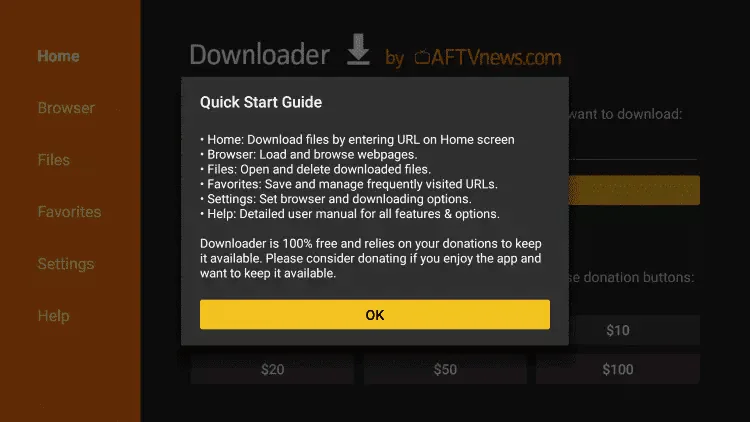
15. Dismiss the introductory message to reach the address field.
16. Choose a player from its publisher. For compatible Android TV devices, the official TiviMate APK address is tivimate.com/apk. For Smarters, check the current compatible downloads on Smarters Pro. Do not use an unverified mirror or an old screenshot URL.
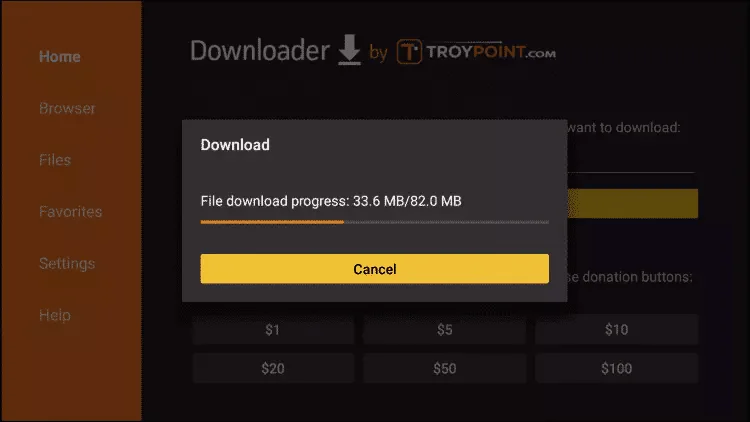
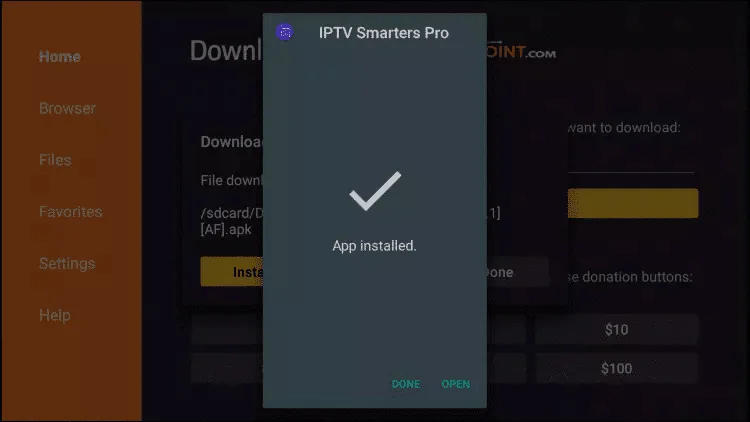
17. Wait for the chosen installer to finish downloading. The next images are examples of an older Smarters installation.
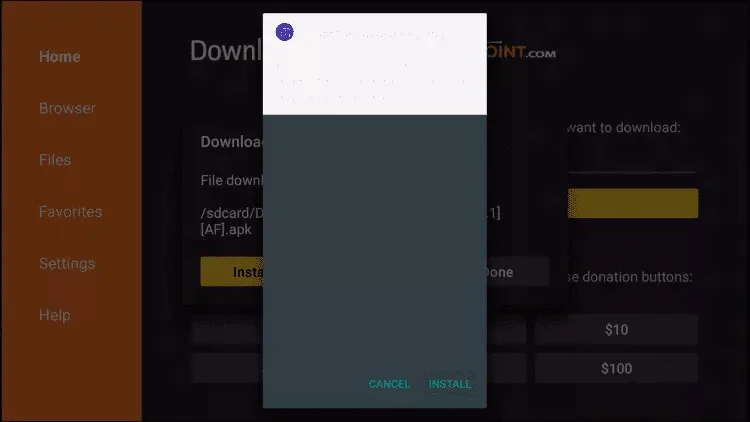
18. Check that the installer matches your chosen player, then follow its installation prompts.
19. Choose Done or Open when the installation completes.
20. Open your player and add the account or playlist information supplied for your own subscription. If your app offers an Xtream Codes sign-in, use the server address, username and password provided to you; never copy example credentials.
21. Allow the library to load, then open a category and test playback. Return to the installation-permission screen and disable Downloader’s extra permission when you have finished.
Use TiviMate’s official website or its Google Play link. TiviMate is intended for Android TV, not optimized for phones or tablets. Inside the app, choose Add playlist and the matching sign-in method, then enter your own service details. Its app licence is separate from a content subscription.
Use the publisher’s Smarters Pro downloads to choose the version for your device. Android phones can use the official Google Play listing. Check the developer name: Tech Smarters.
1. Install the compatible app from its official source, then open it.
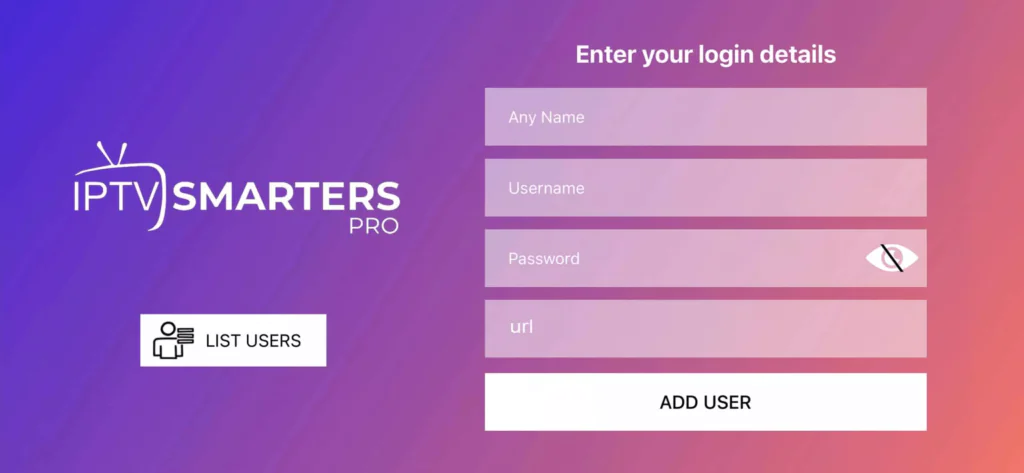
2. Add your account using the login or playlist option that matches the details supplied to you. The image below illustrates an older Smarters sign-in screen; a newer version may look different.
3. Enter your own account name, username, password and server URL where requested. Check spelling and avoid extra spaces. Confirm to load your library.
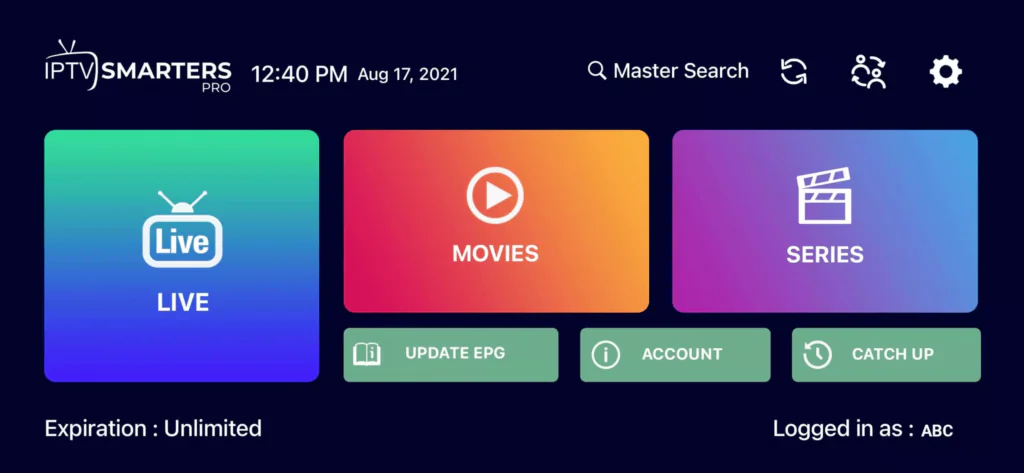
4. Open Live TV, Movies or Series as available in your package.
5. Select a category and an item to play. Use the player’s full-screen control when available. If your guide is empty, refresh the programme guide in the app and contact us if it remains unavailable.
1. Open the official Smarters Pro App Store listing. Check that the developer is Tech Smarters Private Limited and that your device meets the listing’s requirements.
2. Install and open the app. Choose the account or playlist sign-in option that matches your subscription. The screenshots below are older interface examples.
3. Enter your own login details and confirm. Wait while the app loads the available library.
4. Choose a category, select a channel or title and use the full-screen control.
5. If your version includes an EPG or programme-guide option, use it to load the guide. Labels and availability depend on the app and your subscription.
1. Search your TV’s app store for a compatible player, such as SetIPTV, NetIPTV, IBO Player or IBO Player Pro. Availability depends on your TV model and country. Verify the app’s publisher and any separate licence cost before installing.
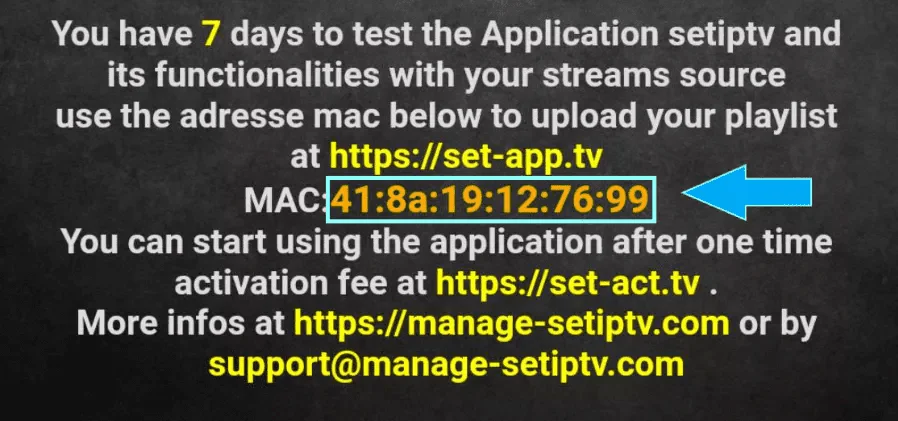
2. Open the app and locate its device identifier. Depending on the player, this may include a MAC address and device key.
This is an illustrative legacy screen, not your device. Do not copy its MAC address, payment destinations or trial dates. Check the current information inside your own installed app.
3. Contact Vistarotv on WhatsApp with the app name and TV model. We will explain the account-specific setup. Share device identifiers only in a private support conversation when needed; never post your passwords publicly.
4. After setup is confirmed, restart the app or TV and refresh its library.
1. Visit Smarters Pro’s official download page and choose its Windows download.
2. Check the publisher and run the installer only if you trust its source. If your operating system flags a security concern, stop and verify the download; do not automatically bypass protection.
3. Open the player, add your own service details and load the library.
1. On the same publisher page, choose the Mac download that supports your computer.
2. Follow the publisher’s installation directions; if supplied as a disk image, open it and move the app into Applications when instructed.
3. Launch the app and add your account or playlist. Verify any security warning with the publisher before proceeding.
1. Contact Vistarotv support with your exact MAG model. If the device uses an external portal, ask us to confirm its compatibility and your subscription’s portal details.
2. When requested, send your own device’s MAC address privately. Never reuse the value from a tutorial image.
3. On supported MAG Linux/WebKit models, open System settings → Servers → Portals. Enter the provider-issued portal URL in the appropriate field and save.
4. Restart the portal or device as instructed. If the portal does not load, recheck the URL and network connection, then contact support.
Menu reference: Infomir portal documentation.
Roku app availability depends on the device and region. Start with the official Roku app-installation instructions and check the Roku Store for a compatible app.
Before ordering or entering subscription details, send us your Roku model and country. We will check whether a supported setup is available. Android APK files cannot be installed as Roku apps.
Send your device model and the app you are using. We will guide you through the next step.